If you’ve ever struggled with adjusting the volume of a track or clip in Pro Tools, you know how frustrating it can be when even the slightest mouse movement results in large jumps in volume. Fortunately, there’s a simple trick that gives you precise control over volume adjustments, making it easier to make subtle changes without overshooting. In this blog post, I’ll show you how to adjust volume in small increments with more accuracy.
How to Adjust Clip Volume Precisely
Let’s say you need to lower the volume of a clip by 1.7 dB. Instead of struggling with tiny mouse movements, try this:
- Hold the CTRL key (Command key on Mac).
- Click on the volume line within the clip.
- Drag the mouse up or down.
You’ll notice that the volume now moves in smaller, more controlled increments, making it easier to dial in the exact amount you need without sudden jumps.
Bonus Tip: Reset Volume to Default Instantly
If you need to reset the volume back to its default (0 dB) quickly, here’s a shortcut:
- Press and hold the ALT key (Option key on Mac).
- Click on the fader or volume automation line.
This instantly resets the volume to zero, saving you time and effort.
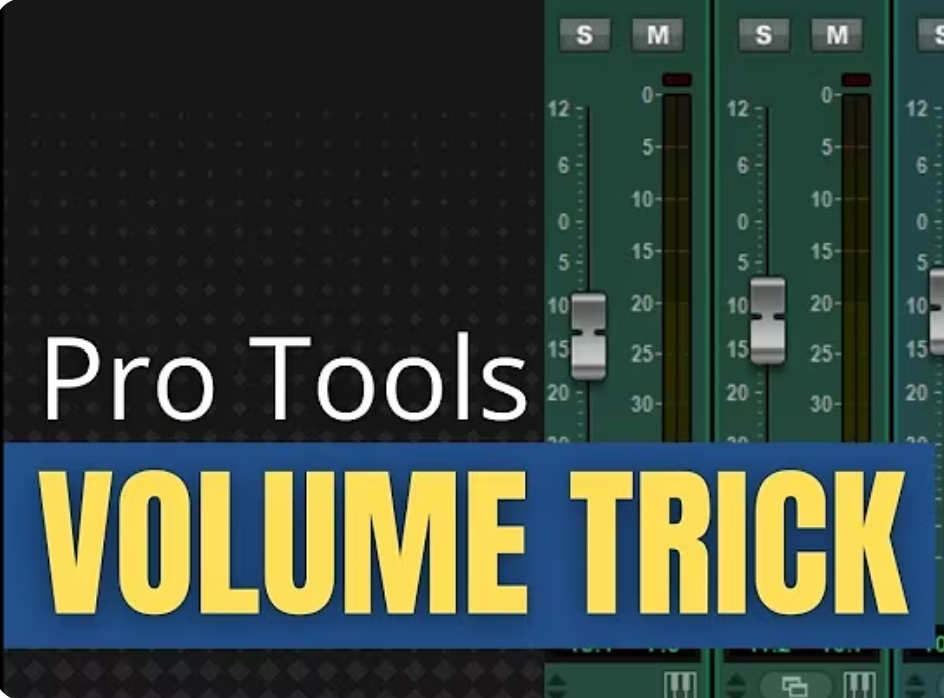
Adjusting Track Fader Volume with More Precision
This technique also works when adjusting the volume on track faders in the Mix window. Here’s how:
- Open the Mix Window using the shortcut: Press CTRL + = (Command + = on Mac).
- Hold the CTRL key (Command on Mac) while clicking on the fader.
- Move the mouse up or down to adjust the volume with finer control.
This method prevents the volume from jumping too drastically, allowing you to make small, precise changes with ease.
Final Thoughts
Using these shortcuts will help you adjust volume in Pro Tools with greater accuracy and efficiency. Whether you’re working on individual clips or track faders, these techniques ensure that you have full control over your mix without frustration.
If you found this tip helpful, give this post a like, share it with fellow producers, and leave a comment below. Also, make sure to subscribe to my YouTube channel for more Pro Tools tips and tricks!