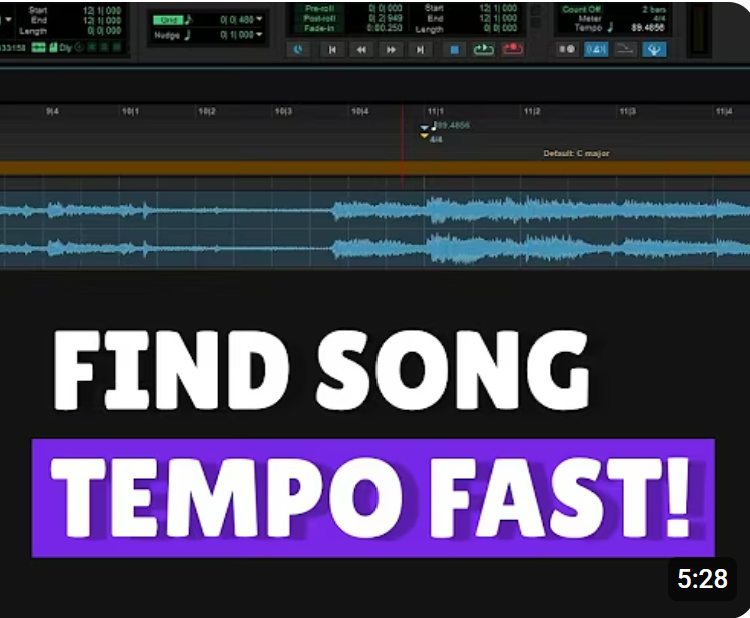
If you’re working on a new session in Pro Tools, one of the first things you should do is determine the tempo (BPM) of your song. This is crucial because if you don’t set the tempo correctly from the beginning, recording and editing will be much more difficult. Without an accurate BPM, you won’t be able to quantize MIDI notes, copy and paste parts effectively, or sync delay effects to quarter or half notes.
Luckily, Pro Tools makes it easy to find the tempo of any song. Follow these steps to ensure your session is perfectly in sync:
Step 1: Enable Key Features
Before you start, make sure the following options are enabled:
- Tab to Transient: This allows Pro Tools to snap to the beginning of each transient in the waveform.
- Conductor Mode: This ensures that tempo changes are properly mapped within the session.
Step 2: Find the Tempo by Ear
Listen to the song and try to count the tempo along with it. If it’s difficult to determine the tempo at the beginning (especially if there are no drums), find a section later in the song where the beat is more obvious.
Bonus Tip: If you want to see the waveform more clearly, left-click on it, hold the mouse button, and move the mouse upward. This will enlarge the waveform, making it easier to identify transients.
Step 3: Use the Tab to Transient Method
- Move the cursor just before the first beat of a bar.
- Press the Tab key. The cursor will jump to the beginning of the transient (the first beat).
- Press CTRL + I (or CMD + I on Mac) to open the bar number entry box.
- Enter the bar number shown in the Pro Tools timeline (e.g., if it says bar 11, type 11 and press Enter).
Step 4: Identify the Next Bar
- Count the beats: 1, 2, 3, 4, 1 (the downbeat of the next bar).
- Use the same Tab to Transient method to find the first beat of the next bar.
- Press CTRL + I, enter the next bar number (e.g., 12), and press Enter.
Now, Pro Tools will calculate the BPM for you!
Step 5: Verify the Tempo
To confirm the accuracy of the tempo:
- Repeat the process for another bar (e.g., bar 13).
- Compare the BPM values. If they are close, round the number and use it as the final BPM.
- If the song was recorded without a metronome and has variations in tempo, take an average BPM value.
Step 6: Set the Tempo
- Click on the tempo marker in Pro Tools.
- Enter your calculated BPM (e.g., 89 BPM) and confirm.
- Remove extra tempo markers by ALT + Clicking (or Option + Click on Mac) to delete them.
Step 7: Remove Empty Space at the Beginning (If Needed)
If the track doesn’t start immediately:
- Use Tab to Transient to locate where the music begins.
- Press CTRL + E to split the audio at that point.
- Delete the empty section and slide the track to the start of the session.
Step 8: Add a Click Track for Confirmation
- Go to Track > Create Click Track.
- Play the song along with the metronome to ensure they align perfectly.
- To double-check, play a section in the middle of the song with the metronome and confirm that they remain in sync.
And that’s it! Now you’re ready to record, edit, and mix with confidence.
If you found this guide helpful, be sure to like and subscribe to my YouTube channel where I share music production tips, Pro Tools tutorials, and everything related to making music!
Happy producing! 🎶